About the Project
At a hosting company that sells virtual servers (VPS / VDS) on VMware infrastructure, customers' most frequent requests are always the same: "My server won't boot, what's on the screen?", "Can you restart it?", "I need to connect from the console." Each of these requests requires the support team to log in to vCenter and perform the action by hand.
Virtual Server Management Panel is a self-service platform that securely hands these tasks over to the customer. The customer takes a screenshot of their own server, restarts it or connects to the live console from the browser; they never see vCenter. The panel also talks to WHMCS: when an order arrives, it automatically builds the virtual machine from a template, assigns an IP address from the pool and links the service to the customer.
Highlights
- Full self-service: Screenshot, start, shutdown, restart and live console are in the customer's hands
- Automatic from order to provisioning: WHMCS order → clone from template → IP assignment → power on the machine
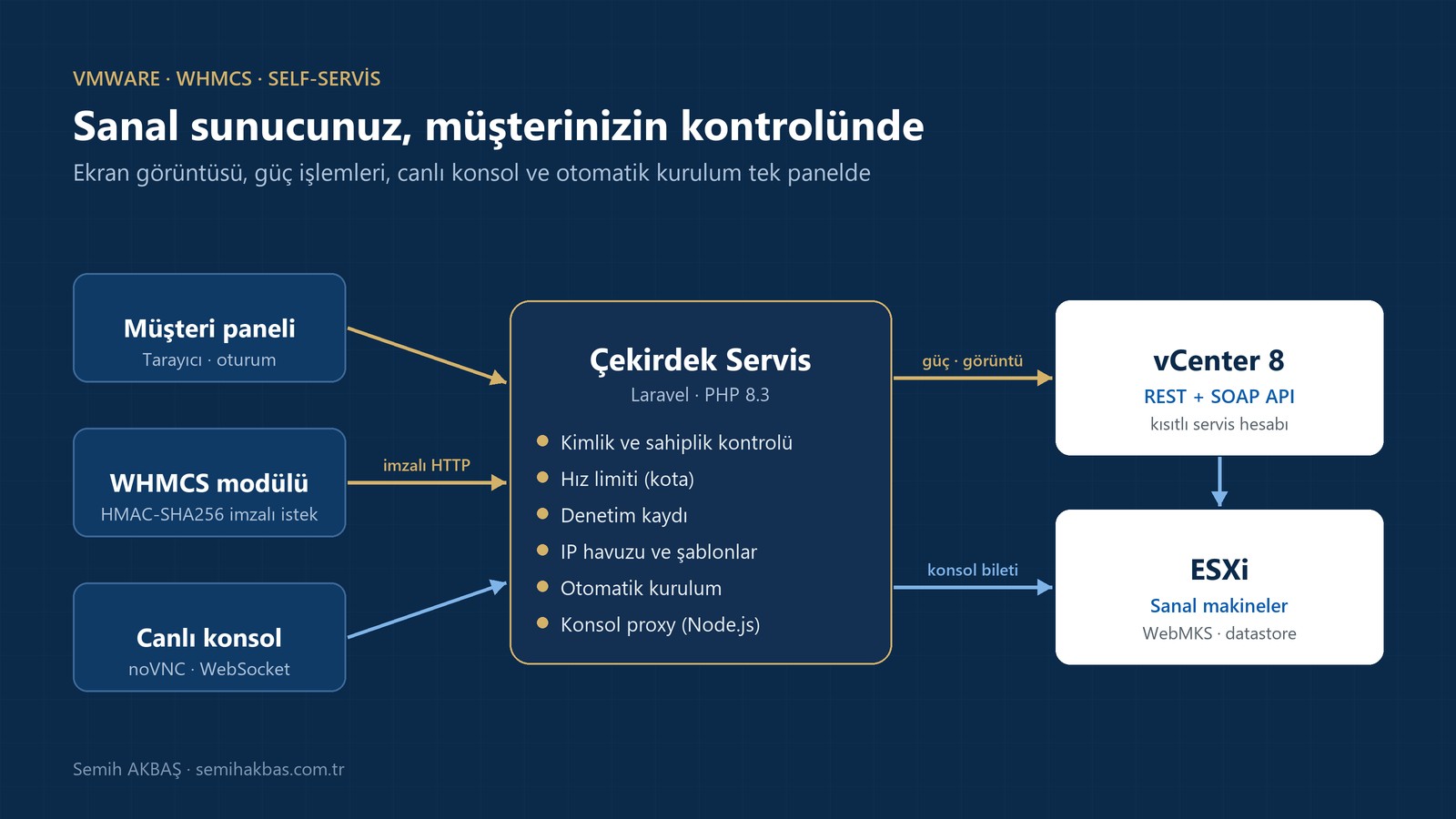
- Single point of authority: vCenter access exists only in the core service; WHMCS and the browser never touch vCenter
- Every action is recorded: Who did what, when, on which server, from which IP, and what the result was
Customer Panel
- My Servers: The customer sees only the virtual machines assigned to them; there is search by name, IP, machine ID and customer information, and a status filter.
- Instant screenshot: Whatever is on the server's console at that moment is shown as a PNG. A boot error, a blue screen or a stuck update can be seen without opening a support ticket.
- Power operations: Start, graceful shutdown and graceful restart. A graceful action is passed to the operating system through VMware Tools; if Tools is not available, the customer is asked separately about the "force restart" option. A hardware reset is never issued silently, because a reset is the same as pulling and replugging the power cord and carries a risk of data loss.
- Live console: Connect to the server's screen from within the browser without installing a plugin; makes it possible to intervene on a server whose network settings are broken or that cannot be reached via SSH/RDP.
- Connection details and activity history: The server's address, username and the customer's own most recent actions on the same page.
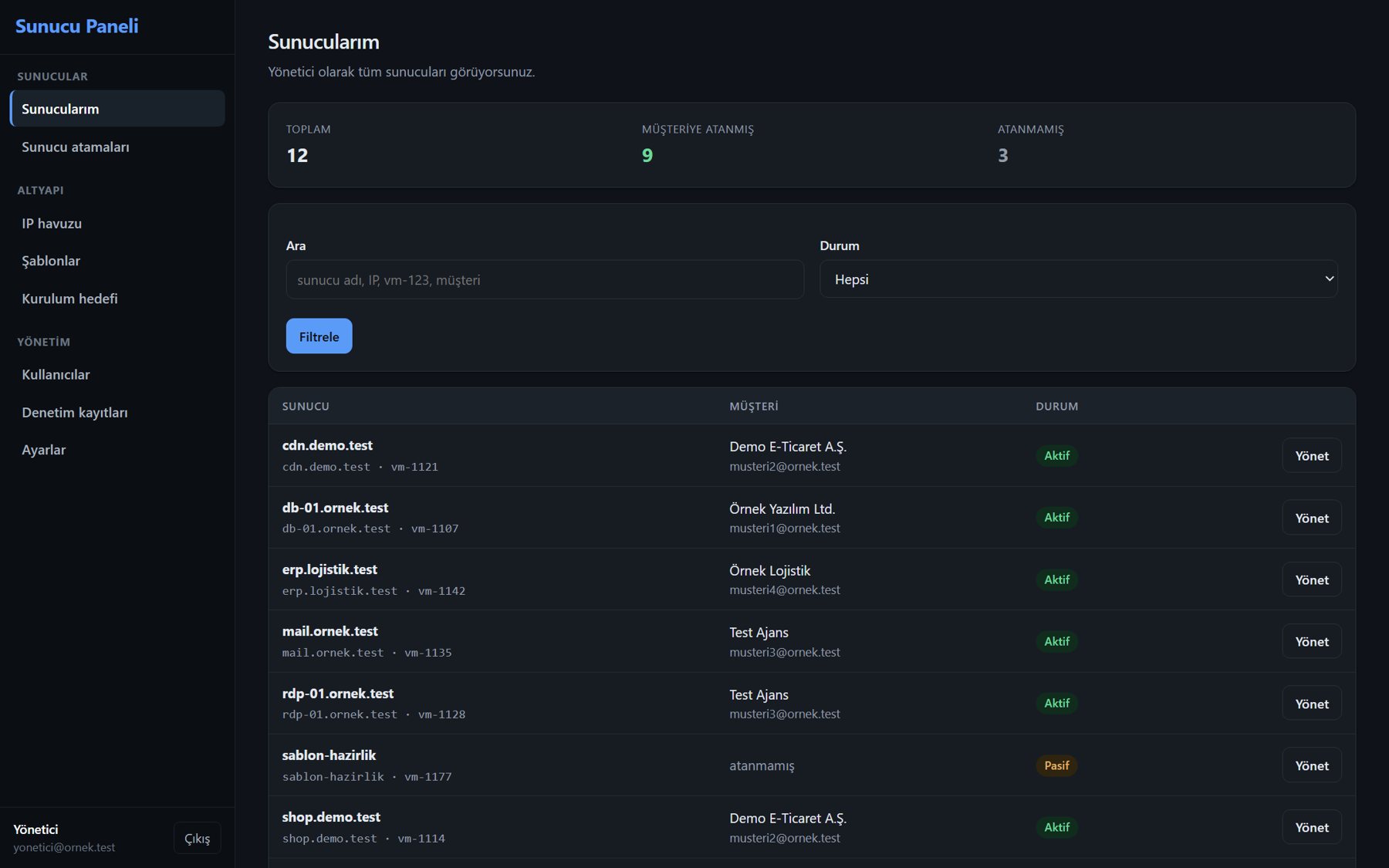
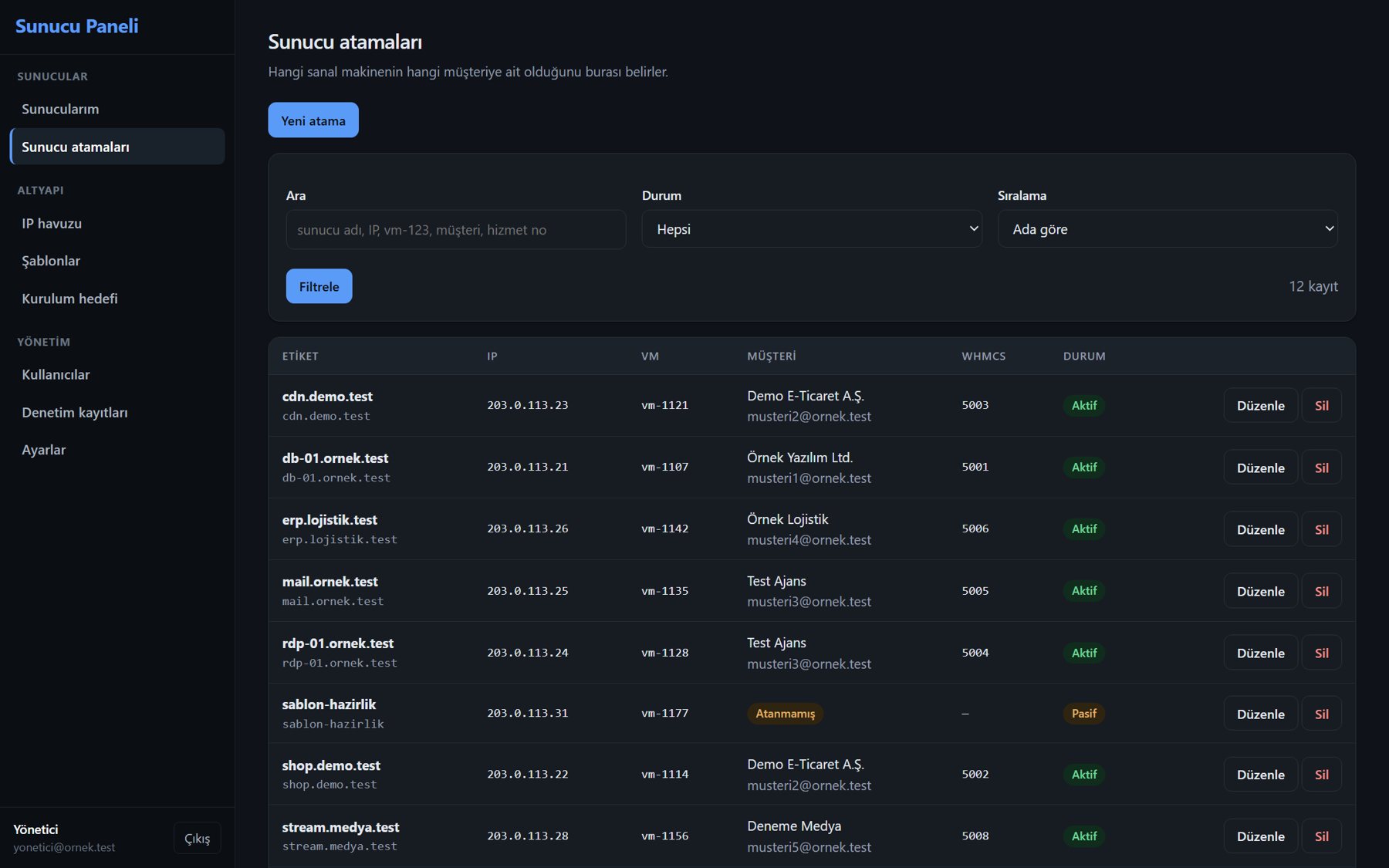
Admin Panel
- Server assignments: This is where it is determined which customer and which WHMCS service each machine in the vCenter inventory belongs to; the inventory is imported with a single command, and new machines arrive inactive and unassigned.
- Users and switching to a customer account: To see exactly what the customer sees, an administrator can switch to their account and return with one click; switches are written to the audit log.
- IP pool: Bulk addition as a range (
…100-120), CIDR (/29) or single address; gateway and DNS information; free, assigned and reserved counters; releasing an address. - Operating system templates: The operating system option in the WHMCS order is mapped to a template in vCenter. Ubuntu, Rocky Linux, AlmaLinux, Kali Linux and Windows Server templates are supported.
- Provisioning target: The resource pool, VM folder, datastore and network (port group) where new machines will be created are selected from the panel.
- Settings: Screenshot, power and console features can be turned on and off individually; whether customers are allowed to force a restart and the support note are managed here. The vCenter connection can be tested from the panel.
- Audit logs: Every action taken from the panel, successful or not, is recorded and never deleted; it can be filtered by user, server, action type and result.
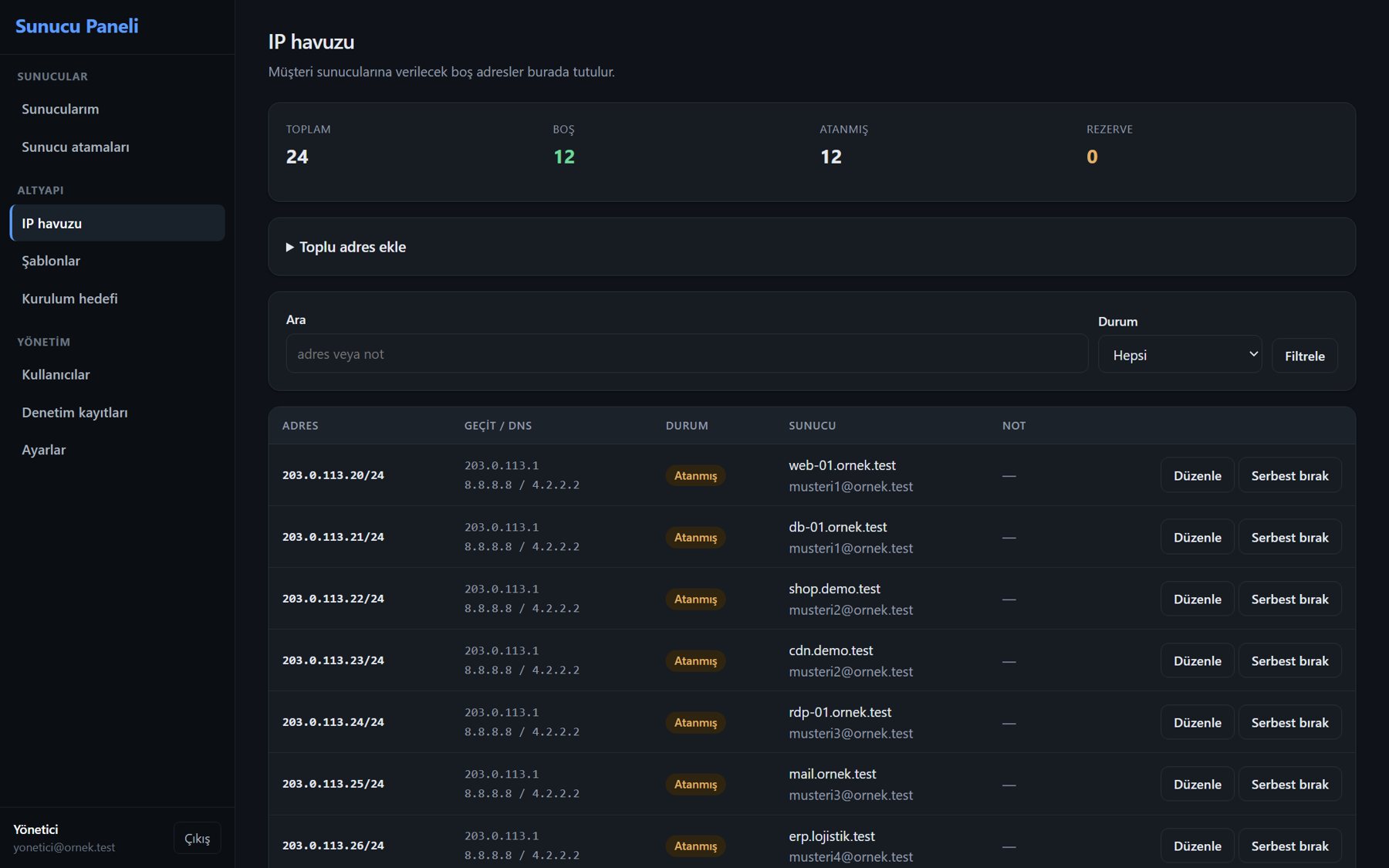
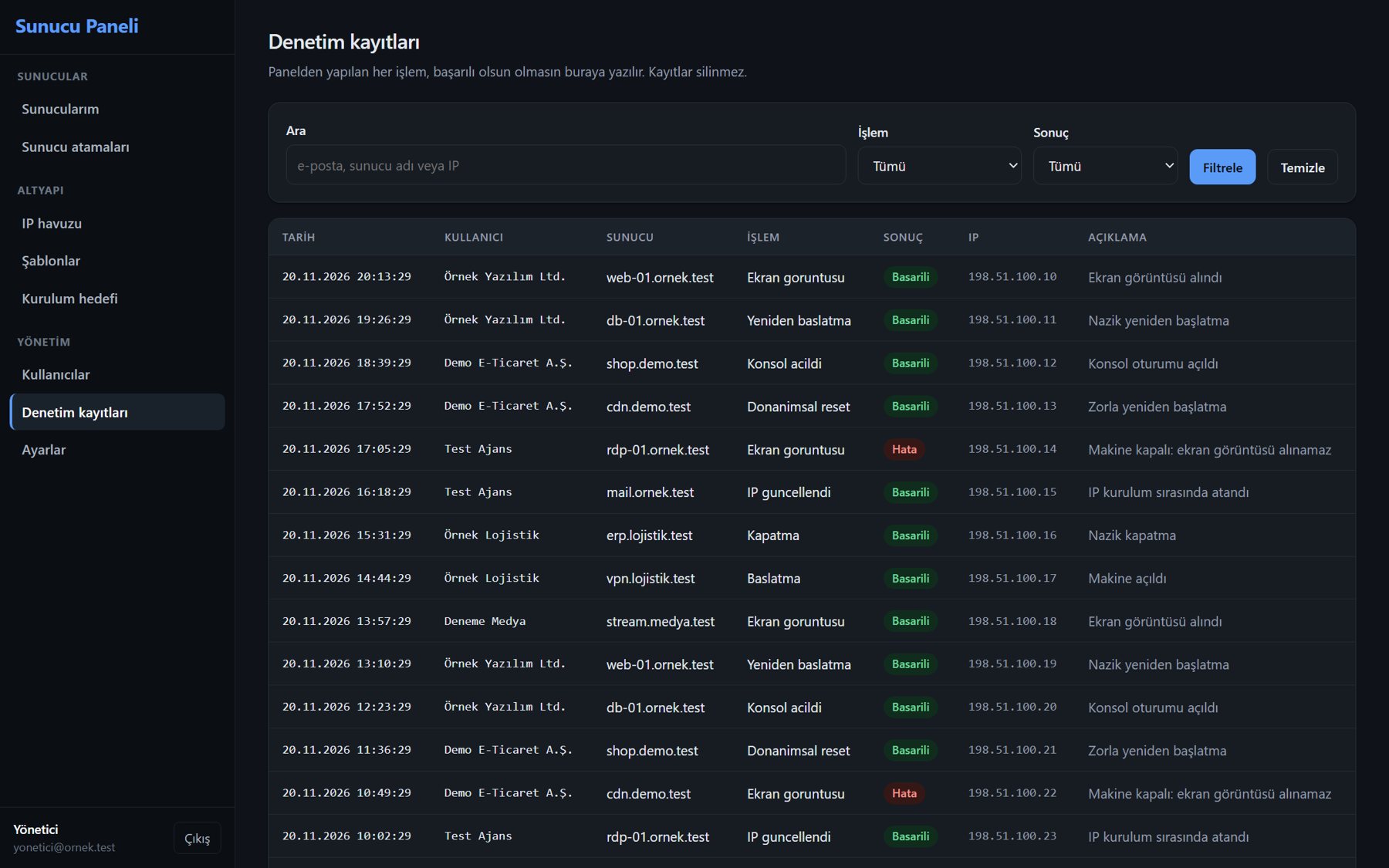
The screens were taken from a test installation prepared with sample data; they contain no real customer, server or IP information.
WHMCS Integration
The panel comes with a custom server module for WHMCS. The module never connects to vCenter; it only sends signed requests to the core service.
- Service lifecycle: Create, suspend, unsuspend and terminate are triggered by the standard WHMCS operations.
- Client area: The WHMCS client area shows server status, power buttons, screenshot, console and activity history.
- Connection test: The "Test Connection" button in WHMCS reports the panel and vCenter chain end to end.
- Acting on behalf of the customer: Requests are processed under the customer's identity; this way the authorization check goes through the same code path as the panel, and the real person appears in the audit log. No action can be taken on behalf of an administrator account through WHMCS.
Automatic Provisioning
The moment a customer places an order in WHMCS, the virtual machine starts being prepared:
- Find the template: The operating system option in the order is matched with a template.
- Allocate an IP: A free address is reserved from the pool.
- Clone and customize: The template is copied within the datastore. The computer name, administrator password and static IP are applied with cloud-init on Linux and with vCenter's sysprep customization during cloning on Windows. A unique password is generated for each customer.
- Set resources and power on: CPU, memory and disk size are set according to the package, the machine is powered on, and its record is created and linked to the IP.
- Safe error handling: If any step fails, the reserved IP is released back to the pool; the machine that was created is not deleted but written to the log. The decision to delete always belongs to a human.
Cloning is much faster than OVF deployment, which rewrites the image from scratch every time, and it does not strain the ESXi host. AlmaLinux and Rocky Linux kickstart files, cloud-init configurations and Windows template preparation scripts are also part of the project.
Technical Architecture
- Core service: Laravel and PHP 8.3; authorization, quotas, audit logging and all vCenter communication in a single place.
- vCenter REST API: Sessions, machine listing, power state and power operations are handled with the vSphere Automation API.
- vCenter SOAP API: The REST API has no screenshot capability. The image is created in vCenter via SOAP, downloaded from the datastore with a one-time ticket and deleted immediately so that no leftovers remain on the datastore.
- Live console (WebMKS): Since the built-in VNC was removed as of ESXi 7, WebMKS is the only way. The open-source noVNC runs in the browser; the connection is relayed to ESXi through a Node.js WebSocket proxy written without dependencies.
- Installation: Comes up with a single command using Docker Compose; automatic HTTPS certificates with Caddy.
- Tests: Automated tests for authorization, rate limiting, console sessions, the IP pool, the provisioning flow, WHMCS signatures and the vCenter client.
Security Design
- Least privilege: The connection to vCenter is made not with an administrator account but with a dedicated service account that only has permissions for screenshots, power and datastore file operations. Even if the panel is compromised, the damage is limited to these permissions.
- Encrypted credentials: vCenter connection details are stored encrypted in the database; TLS certificate verification is mandatory for the vCenter connection.
- Signed WHMCS requests: The signature covers the timestamp, method, address and the entire request body. An intercepted request cannot be modified to target a different service.
- The console ticket never reaches the browser: The browser receives only a one-time, user-bound session ID that is valid for 60 seconds. The ESXi certificate is verified against the fingerprint reported by vCenter.
- Rate limits: Screenshots and restarts are protected by per-server per-minute limits; the datastore and the vCenter task queue are safe from abuse.
- Ownership check: Every request goes through the chain identity → does this server belong to this user → rate limit → vCenter call → audit log.
Roadmap
- Automatic inventory synchronization and health checks for machines deleted in vCenter